
Phone Cleaner
Omareyah TeamTools
3.754.00 Reviews
- Version
- 1.0.2
- Installs
- 100.00K
- Age Rating
- Everyone
Screenshots

Our Review of Phone Cleaner
 Analysis by Appyee
Phone Cleaner is the kind of utility I would open when my phone feels crowded rather than when I want a dramatic system makeover. Developed by Omareyah Team, it brings several familiar maintenance jobs into one place: clearing unwanted files, compressing photos, managing installed apps, and checking battery information. I tested it with a practical mindset, looking less for flashy promises and more for whether each action gives me enough information to make a safe decision.
That distinction matters with cleaning tools. Removing a genuinely unnecessary file can free useful space, but deleting something without understanding it can create a new problem. A good cleaner should therefore save time without taking control away from the person holding the phone. My overall impression is that this app is most useful as a simple inspection and maintenance companion, especially for someone who does not want to jump between Android settings, a photo tool, and an app manager.
What the app is really useful for
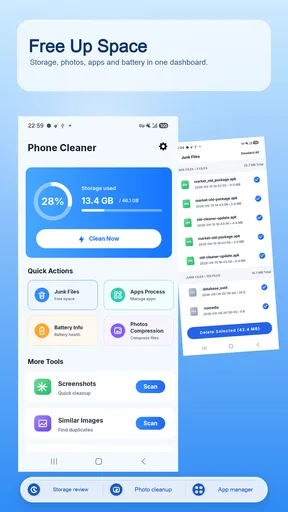
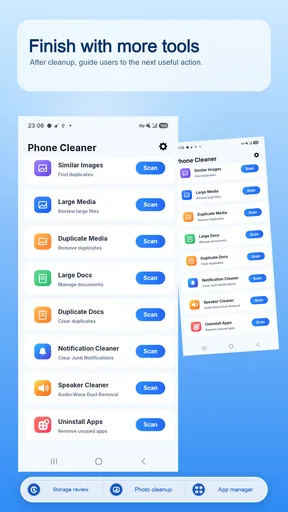
The app sits in the tools category and has a straightforward purpose. Its store summary focuses on four areas: junk cleaning, photo compression, app management, and battery information. I found that combination more practical than a utility that concentrates only on deleting files. Storage pressure is rarely caused by one thing, so being able to review several sources of clutter in one session makes the process easier to organize.
Its short store description is simply “Phone Cleaner,” but that label should not lead you to expect a complete replacement for every built-in Android setting. I see it more as a convenient front door to common maintenance tasks. Android already offers storage screens, battery menus, and application controls, while a dedicated photo app can often provide deeper compression choices. The advantage here is the single-purpose layout; the trade-off is that a focused specialist may offer more detail in one particular area.
The app is free and rated for Everyone, which makes it approachable for households where different people share advice about keeping a phone usable. It has reached over one hundred thousand installs and holds a 3.7 average from around three hundred seventy-five ratings. That tells me there is meaningful interest, but it also suggests I should not treat the app as universally perfect. The rating is a reason to try it carefully, not a reason to hand over every cleanup decision automatically.
The current release is version 1.0.2 and supports Android 8.0 or later. That compatibility is helpful if you are maintaining an older device, although the experience can still vary depending on the phone maker and Android interface. Storage categories, battery screens, and permission prompts are not identical across brands, so I would always read the screen in front of me instead of assuming the app can expose every system detail in the same way.
Cleaning without turning it into a guessing game
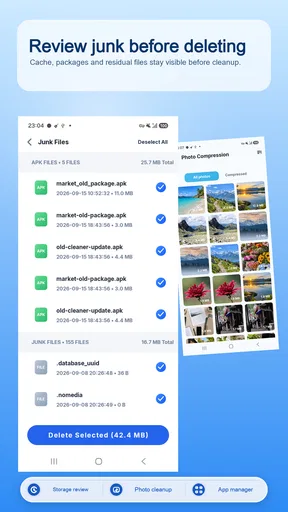
The most important habit with any junk cleaner is to treat its scan as a recommendation, not a command. I would begin by reviewing what the app groups together and asking whether each category is genuinely disposable. Temporary material is usually easier to question than personal downloads, offline media, documents, or files created by another app. If the screen presents a broad selection, I would deselect anything whose purpose is unclear before confirming a cleanup.
This is where a cleaner can be convenient but also limited. A one-tap approach may feel satisfying, yet it can hide the difference between harmless leftovers and files I still need. I prefer an app that lets me inspect the proposed cleanup, and I would use Phone Cleaner with that expectation: scan first, review second, remove last. The extra minute is worthwhile, particularly before traveling, working offline, or preparing a phone for an important day.
A useful routine is to clean in small sessions instead of waiting until storage is nearly full. I would check the phone after downloading a large batch of media, finishing a video project, or installing several temporary apps. Smaller reviews make it easier to remember what I created and reduce the chance of deleting something I intended to keep. This workflow also makes the app feel less like an emergency button and more like a regular inspection tool.
I would not use a cleaner as a solution for every storage problem. If a phone is full because of a large game, long videos, or duplicated camera files, deleting miscellaneous junk may have little effect. In that situation, Android’s storage view or the relevant app’s own download controls may show the real cause more clearly. Phone Cleaner is better when I want a consolidated look at several maintenance areas, not when I already know that one large folder is responsible.
Photo compression requires a little patience
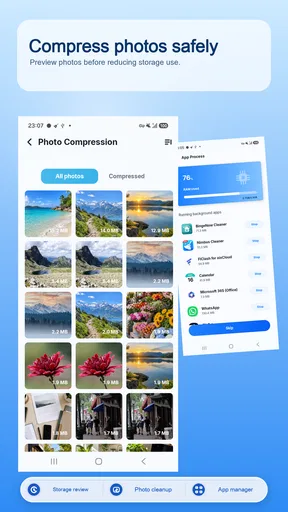
Photo compression is potentially the most valuable part for people who keep years of pictures locally. It can make a noticeable difference when images are large, but compression always involves a compromise between space and quality. I would never process my only copies without first checking which images are selected and keeping an independent backup of anything important.
My preferred workflow would be to start with easily replaceable pictures, such as screenshots, reference images, or photos taken for a temporary task. I would compare a compressed result at the size I normally view it, not only by zooming in on a tiny detail. A picture that looks unchanged on a phone may still be unsuitable for printing or detailed editing later. This is a non-obvious trade-off: saving space today can reduce flexibility tomorrow.
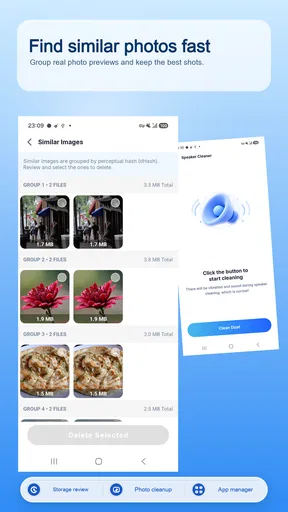
I would also separate “storage cleanup” from “photo organization.” Compression may reduce file size, but it does not automatically solve duplicate images, poor folder structure, or a cluttered gallery. If my problem is finding pictures rather than storing them, a gallery app with stronger albums and search would be a better first choice. Phone Cleaner makes sense when the immediate goal is reducing the footprint of selected photos.
Before confirming a batch action, I would check whether the app clearly distinguishes the original from the compressed copy and whether the result is easy to locate. The safest approach is to process a small group, inspect the outcome, and only then continue. That test batch is especially useful for pictures containing text, night scenes, or fine patterns, because those reveal quality changes more quickly than ordinary snapshots.
App management is more useful when I prepare first
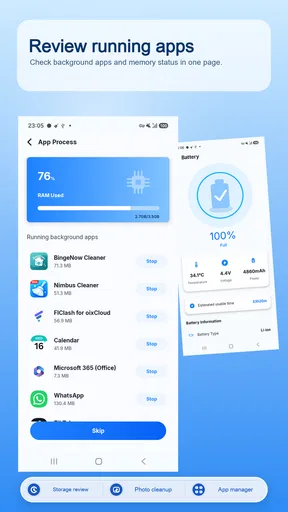
The app-management area can help me review what is installed, but I would use it as a decision aid rather than an automatic purge. Unused apps are tempting targets, yet some are needed only occasionally: travel tools, authentication apps, work utilities, or games with local progress. Removing an app may also remove locally stored information, depending on how that app handles its data.
Before uninstalling, I would check whether I know the login details, whether the app synchronizes its content, and whether I might need it without internet access. This is one of the places where a basic system settings screen can be better because it may expose more app-specific storage and permission controls. Phone Cleaner is convenient for seeing the broader list, but I would move slowly when an app contains personal records or offline files.
A practical cleanup method is to divide apps into three groups: essential, occasional, and uncertain. I would remove only the obvious candidates during the first pass, then use the phone normally for a few days before revisiting the uncertain group. That approach avoids the common mistake of deleting something simply because it has not been opened recently. In my experience, frequency alone is a poor measure of importance.
I would also avoid assuming that uninstalling many small apps will transform performance. It may improve available storage and reduce visual clutter, but it does not guarantee a faster phone. If the device feels slow because of an aging battery, a demanding background process, or limited memory, the battery information area and Android’s own system screens may provide more relevant clues than a mass uninstall.
Battery information is for context, not a repair button
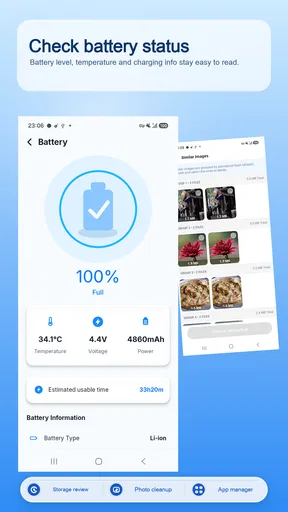
The battery section is useful because it gives the maintenance process a different perspective. Storage and battery problems are often confused: a phone can have plenty of free space and still drain quickly, or it can have poor battery life because of usage patterns rather than a single faulty app. I would use the battery information to notice trends and identify when a separate investigation is needed.
For example, if battery life worsens after installing one app, I would compare that timing with Android’s battery usage screen rather than immediately blaming the cleaner or deleting random applications. If the phone is old and the battery has physically degraded, a software utility cannot restore lost capacity. In that situation, the right answer may be adjusting usage, replacing the battery through an appropriate service, or considering a different phone.
This is another reason I like keeping the app’s functions together: a storage review and battery check can prevent me from chasing the wrong problem. However, the presence of battery information should not be interpreted as a promise of battery repair, calibration, or performance improvement. I would read the information as guidance and use the operating system’s controls for changes that affect background activity, power saving, or individual app behavior.
Trust depends on what I can see before acting
With a tool that can inspect files, photos, applications, or battery-related information, trust is not created by a friendly icon alone. I look for clear prompts, understandable choices, and a chance to cancel before an irreversible action. The most reassuring experience is one where I can tell what is being selected, what will happen next, and whether the action can be undone.
I would pay close attention to every permission request when first opening the app. A permission should make sense in relation to the task I am trying to perform, and I would avoid granting access simply because a scan button is prominent. Android lets me review permissions through system settings, so I would use that control when I want to reconsider access later. If I am only checking battery information, I would not casually approve access that appears unrelated to that specific purpose.
Photos deserve extra care because compression involves personal content, not just anonymous cache files. I would select a limited group, observe the preview or confirmation details available to me, and keep important originals elsewhere. The same principle applies to app management: I would confirm the exact app before removing it and check whether its local data matters.
I also prefer to make decisions with the phone offline when a task does not require connectivity, although I would not assume that every function works that way. The sensible rule is to follow the permission and system prompts shown at the moment of use. If a request is confusing, I would stop and investigate rather than accepting it just to reach the main screen.
Account control is another practical concern. I would be cautious about creating an account for a simple cleanup task unless the app clearly explains why it is needed and what control I receive in return. For routine maintenance, I value being able to open the tool, review a local task, and leave without unnecessary commitment. If an account or sign-in screen appears, I would read the choices carefully and avoid entering personal information that is not needed for the action I want.
Who will get the most from it
I think Phone Cleaner is a good match for someone who wants one approachable place to review storage-related clutter, reduce selected photo sizes, look through installed apps, and check battery information. It is particularly suitable for people who find Android’s separate settings pages confusing or who regularly postpone maintenance because it feels scattered across the phone.
Imagine a student preparing for a weekend trip. The phone is nearly full after saving maps, taking screenshots, downloading media, and installing a temporary travel app. I would use the cleaner to inspect disposable material, compress a carefully chosen set of screenshots and ordinary photos, and review apps that are no longer needed. Then I would check battery information before leaving. The value is not one dramatic button; it is the shorter path between noticing several small problems and dealing with them in a controlled order.
It can also suit a family member who wants guidance before changing anything. I would sit with them, explain each proposed cleanup, and leave uncertain files alone. The Everyone age rating makes the app broadly approachable, but the age label does not remove the need for supervision when personal photos or important applications are involved.
When another option is the better choice
I would skip this app if I already understand Android’s storage tools and prefer to manage everything directly through system settings. The built-in controls can be more authoritative for permissions, battery usage, and application data. A dedicated photo manager may also be preferable if compression quality, duplicate detection, cloud workflows, or detailed album organization are my main concerns.
I would also avoid relying on it as a security product, a guaranteed performance booster, or a substitute for backing up personal files. Its purpose is maintenance, not protection from every mobile problem. If I need advanced diagnostics, detailed battery health analysis, or professional file recovery, I would look for a specialized tool designed around that single need and examine its permissions just as carefully.
The 3.7 average rating makes me approach the app with realistic expectations. It has enough adoption to be worth considering, but I would not install it and immediately approve every action. My first session would be deliberately small: inspect the available categories, test one low-risk cleanup, review the result, and then decide whether the broader workflow fits my habits.
My cautious verdict
The best way to use Phone Cleaner is as a review-and-confirm tool, not as an automatic delete button. Its appeal comes from combining several ordinary maintenance tasks in one free app from Omareyah Team. I appreciate that it can help me connect storage cleanup, photo compression, app review, and battery awareness into one routine instead of treating each issue separately.
Its limitations are just as important. Compression needs a quality check, app removal needs knowledge of local data and future use, and battery information cannot repair worn hardware. Permission prompts and personal files require deliberate choices, while Android’s own settings may be more detailed for certain controls. Those are not reasons to dismiss the app; they are boundaries that make the tool safer to use.
After trying it, I would recommend it to a reader who wants a simple maintenance dashboard and is willing to inspect results before confirming them. I would not recommend it to someone seeking deep diagnostics or completely hands-off cleaning. Used carefully, Phone Cleaner can make routine upkeep less scattered. The final decision should remain mine at every stage, especially when the proposed cleanup touches photos, application data, or anything I may need later.
Verdict
Strengths of Phone Cleaner
- Quickly identifies junk files and unnecessary cache.
- Simple interface makes cleaning easy for beginners.
- Helps free up storage space with a few taps.
- Includes tools for finding large and duplicate files.
- Provides useful storage insights before deleting anything.
Limitations of Phone Cleaner
- Some scans may flag files that are still useful.
- Aggressive cleaning can remove app preferences or downloads.
- Extra features may require a premium subscription.
- Ads can interrupt the cleaning process in the free version.
- Cleaning results may vary depending on the device and Android version.
Other Releases by Omareyah Team
View All
PDF Reader - Smart Viewer
Productivity4.0

PDF Reader Lite - Fast Viewer
Tools4.0
Similar Picks in This Category
View All
Google LLC4.0

Gboard - the Google Keyboard
Google LLC4.5

Google Play services
Google LLC4.3

Google Play Store
Google LLC4.9

Files by Google
Google LLC4.5

SHAREit: Transfer, Share Files
Smart Media4U Technology Pte.Ltd.4.3
Frequently Asked Questions
What is Phone Cleaner and what does it do?
Phone Cleaner is a utility app designed to help identify and remove unnecessary files from an Android or iOS device. During testing, its main functions included scanning for cached data, temporary files, duplicate items, large files, and unused leftovers. Depending on the version, it may also offer memory optimization, battery information, photo organization, or device-storage analysis. Results can vary by operating system and device permissions.
Is Phone Cleaner safe to use, and could it delete important files?
Phone Cleaner is generally safe when used carefully, but users should always review the scan results before confirming a cleanup. Cache files and temporary data are usually safe to remove, while photos, downloads, documents, and messaging attachments may be personally important. We recommend checking selected items manually, keeping a backup of valuable files, and avoiding automatic deletion until you understand exactly what the app has identified.
Does Phone Cleaner really improve phone performance or battery life?
Phone Cleaner can free storage space and may make a device feel less cluttered, especially when it contains large temporary files or unnecessary downloads. However, it cannot perform miracles, and removing files does not guarantee a major speed increase or longer battery life. Battery performance is more strongly affected by screen use, background activity, signal strength, battery health, and demanding applications.
What permissions does Phone Cleaner require?
To scan storage, Phone Cleaner normally needs access to photos, videos, documents, and other files on the device. Some versions may request additional permissions for notifications, installed-app analysis, or battery information. Before accepting, read the permission descriptions and grant only what is necessary for the features you intend to use. If a request seems unrelated to cleaning, consider denying it or choosing another app.
Is Phone Cleaner free, or does it include subscriptions and advertisements?
Phone Cleaner may be available as a free download, but many cleaning tools use advertisements, optional purchases, or recurring subscriptions for advanced features. Premium functions can include automatic cleaning, deeper duplicate detection, ad removal, or unlimited scans. Before starting a trial, review the price, billing period, and cancellation conditions in the Google Play Store or Apple App Store to avoid unexpected charges.
